
In-store tablet
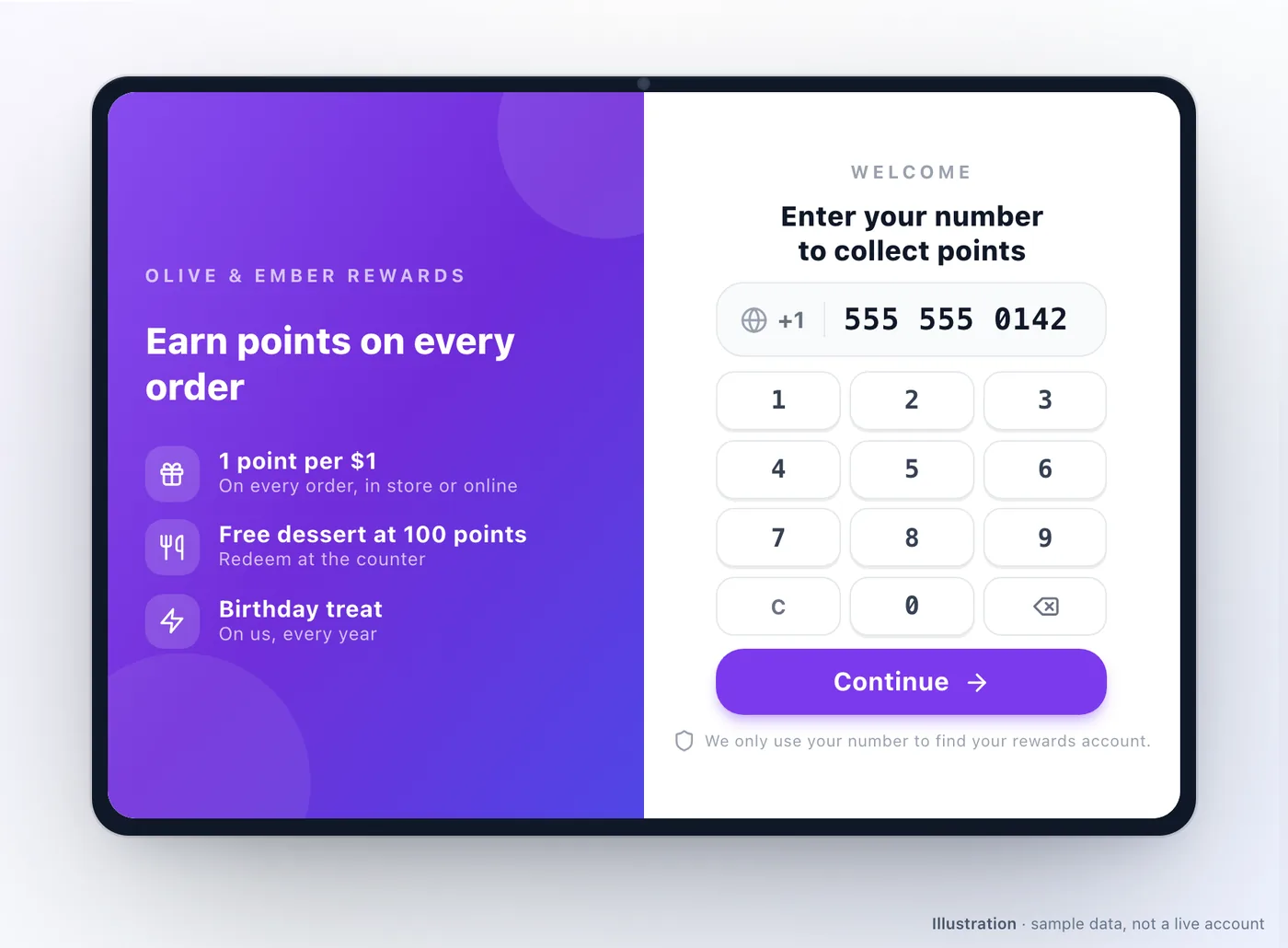
The in-store tablet brings your loyalty programme to the counter. A walk-in customer enters their phone number, sees their points, vouchers and membership benefits, and asks to redeem something — which staff approve from the partner app or POS.
Pairing it
Section titled “Pairing it”Current tablet versions use the same device registry as the other hardware.
- Create a tablet in Dashboard → Operations → Devices for the correct outlet and generate its 8-character enrolment code.
- Enter that single-use code on the tablet within 15 minutes.
- In the partner app or POS, open the in-store pairing screen and choose Link enrolled tablet. Select the enrolled tablet for your outlet.
There is no separate pairing PIN in the current flow. A heartbeat keeps the staff-device link active. If the link lapses, reconnect the enrolled tablet from the pairing screen; a reset or deactivated registry device needs a fresh Devices & staff PINs enrolment code.
What a customer does
Section titled “What a customer does”- They enter their phone number on the tablet.
- If they have an account, it is found. If not, they can register there and then — name, birthday, and a per-channel choice about marketing.
- They see their reward points, wallet balance, vouchers, membership benefits and any pending offers.
- They request a redemption.
- A staff member approves or declines it in the partner app or POS, and the tablet updates immediately.
The approval step is deliberate. It keeps a person in the loop for anything that costs money, and it means the tablet can sit unattended on a counter without being a liability.
Registration and consent
Section titled “Registration and consent”The registration flow is the cheapest list-building you have: a customer standing at your counter, already buying, asked once. Consent is captured per channel, so somebody can accept email and refuse SMS, and it feeds the same consent your campaigns respect — see Broadcast.
You control the banner on the phone-entry screen and whether the marketing consent prompt appears at all, in your design settings. Use the banner to say why somebody should bother: “Check your points” beats an empty box.
Placing it
Section titled “Placing it”- Where somebody is already waiting — beside the till, not across the room.
- Reachable and readable without leaning.
- Powered. A tablet that dies at lunchtime is a tablet nobody trusts.
- Where staff can see it, since every redemption needs their approval.
Offline behaviour
Section titled “Offline behaviour”The tablet shows a network indicator and reconnects on its own, retrying with increasing patience rather than giving up. Its fonts are held locally, so it still looks right while it is reconnecting.
It cannot look up a customer without a connection — the account is not on the tablet. If the outlet’s network is unreliable, fix that before deciding the tablet is unreliable.
Troubleshooting
Section titled “Troubleshooting”| Symptom | Try this |
|---|---|
| The enrolment code is not accepted | It is single-use and expires after 15 minutes; generate a fresh code in Devices |
| It returned to the pairing screen | Check the registry device is active, then use Link enrolled tablet; after a reset, enrol again |
| A customer is not found | Confirm the number, including country code — they may have registered with another |
| A redemption never completes | It needs approval in the partner app or POS; check somebody is signed in there |
| Nothing loads | Check the outlet’s network; the tablet holds no customer data of its own |
| The consent prompt is missing | It can be switched off in design settings |
| Customers try to order on it | Expected — it is a loyalty counter. Consider a Self-order kiosk |
Related: Devices & staff PINs · Reward points · Marketing Autopilot · What customers experience
Was this page helpful?
This site uses a chat widget that sets a cookie so it can keep your conversation. It runs no analytics. See the privacy policy.